Fatal Error Fix + FAQ
Welcome to all new players! 🚀
And a big thank you to the community for helping answer questions and guide newcomers 💜
We have noticed that many users are having the same questions, so we have collected them into an FAQ to help you:
First, install the Unreal Engine Prerequisites by running the installer:
https://downloads.captain-hardcore.com/Misc/UE4PrereqSetup_x64.exe
This fixes most issues. Other things to try:
Update GPU/chipset/audio and other drivers
Disconnect Bluetooth audio devices (these sometimes conflict with Unreal Engine)
Close all background applications, overlays, and system tray apps (potential conflicts)
Disable any virtual audio devices (SteelSeries Sonar Virtual Audio Device, for example)
Disable all anti-virus and anti-malware apps
Make sure you have Windows Media Feature Pack installed and updated
Delete the Config and SaveGame folders found in C:\\Users\\USERNAME\\AppData\\Local\\FluidGame\\Saved
Disable any overclocking
Make sure Steam VR is installed. Right-click the game in your library and go to properties, general, then set the launch option to Steam VR Mode. You could also launch it from within VR.
You can press V to toggle between VR and desktop at any time. If you'd like to always launch in desktop mode, then right-click the game in your library and go to properties, general, and then set the launch option to Desktop Mode. This will launch the game without Steam VR.
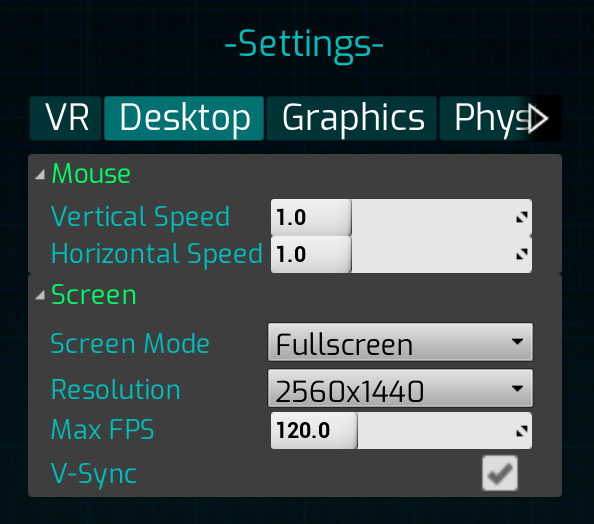
Start by reducing graphics settings to the lowest possible quality, then gradually increase settings until you find a good balance of quality vs performance.
Anti-aliasing, ambient occlusion, and subsurface settings will affect performance the most.
Hair and fluid simulations can be performance-heavy. Avoid spawning too many fluid simulations in VR mode.
Dynamic lights also affect performance; try not to spawn too many, and keep their shadows disabled most of the time.
Translating the game is something that we want to do in the future. At the moment, the Developer is fully focused on reaching v1.0. Once that is closer, we will start the translation to several languages, such as Chinese, Russian, German, French, Portuguese, and others.
Story progress will auto-save after the first mission. More checkpoints are coming in the next update to make progression smoother. Once the first mission is completed, you can use the Cyber Maturbatorium to create, save, and load as many scenes as you like.
Press the green floppy disc button on the main menu and select "New" you can then select one of 16 environments to create a new scene in.
Make sure your Steam VR branch is set to Default and not Previous or Beta. Right-click SteamVR in your Library, click Properties, then select Game Versions & Betas, then select Default.
VR Reloading → Reach over your left shoulder, press grab, and a magazine will appear in your hand. Place it into your gun to reload.
Seated mode/adjusting position → Press and hold down the right thumbstick and move your hand to adjust your position for better reach & comfort.
VR Comfort Settings → Open the main menu, go to settings, and you'll see options for teleportation and snap turning.
Skip Story Button → Jump straight into the sandbox with all items unlocked. This setting will launch the game as if the story mode had already completed.
Help Screen → Open the main menu and select Help. Here you’ll find controller bindings and more gameplay and sandbox tips.
Experiencing any issues? Join our Discord and ask in #support: https://discord.gg/6hMjPCtdsm
More from Captain Hardcore